Notifications
Click on the notification icon in the bottom-left corner of the screen to check your notifications. If you have notifications, a blue dot with a number appears on this icon.


In the Notifications section, you can view all actions within the system. Items that are bolded are new and have not yet been reviewed, while items that are not bolded have either been viewed or addressed.
To read or delete notifications, follow these steps:
-
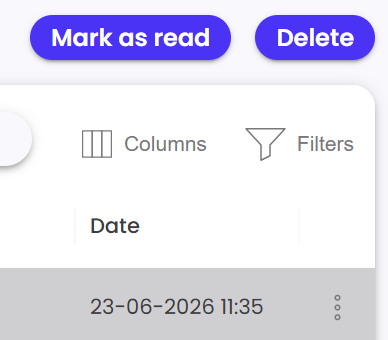
Click the menu icon (three dots on the right side).
-
Select the read option to mark it as read, or the trash option to delete it.
You can also use the Multi-select option.