Reset a user’s two-factor authentication
As a Client Admin, you can reset a user’s two-factor authentication (2FA) when they can no longer access their authenticator app or recovery codes.
To reset a user’s two-factor authentication:
- Go to Settings (click the gear icon in the bottom-left corner), where an overview of all users will appear.
- Search for the user whose two-factor authentication needs to be reset and click the menu icon (three dots on the right side) next to their name.

- Select the “Edit” option in the dropdown.
- A sidebar will open with the user’s information.
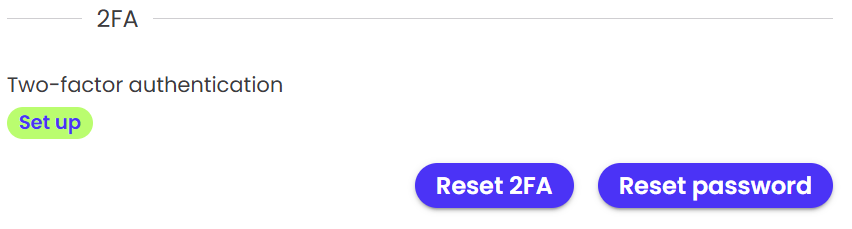
- At the bottom of the sidebar, click “Reset two-factor authentication”.
- A warning pop-up will appear asking you to confirm the reset.
- Click “Reset 2FA” to confirm.
- the user’s current two-factor authentication setup will be reset. The user will automatically receive an email confirming that their two-factor authentication has been reset.
Please note:
After resetting two-factor authentication, the user’s previous authenticator setup and recovery codes will no longer work. The user will need to complete the full two-factor authentication setup again the next time they log in.