Edit form
To edit and start building a form:

- Click the “menu icon” (three dots on the right) next to the briefing you want to edit. then select “edit” in the dropdown.
- The form will load, and the following will be visible:
- Left side: All available fields that can be used within the form.
- Right side: The workspace where you can insert and configure the fields.
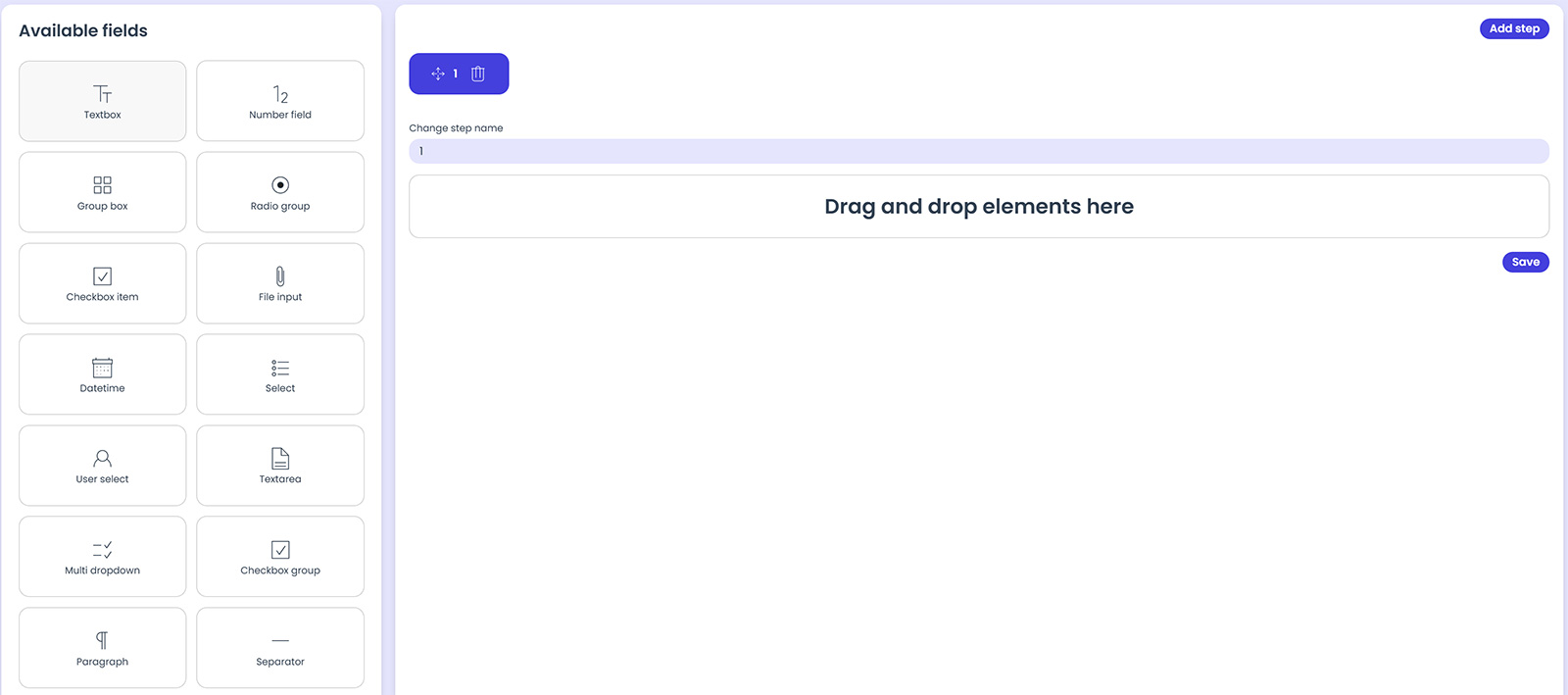
At the top of the workspace, you will see the steps of the form.
- By clicking on a blue pill, the form for that step will be displayed.
- The input field at the top allows you to change the step name of the step you’re currently working on.
To build the form:
- Drag a field from the left side into the workspace.
- Add the number of fields you need and configure your form as required.
Note:
For a better understanding of the available fields and their functionality, please refer to the article “Form fields.”
Once the step is complete, you can either add a new step or save the form.