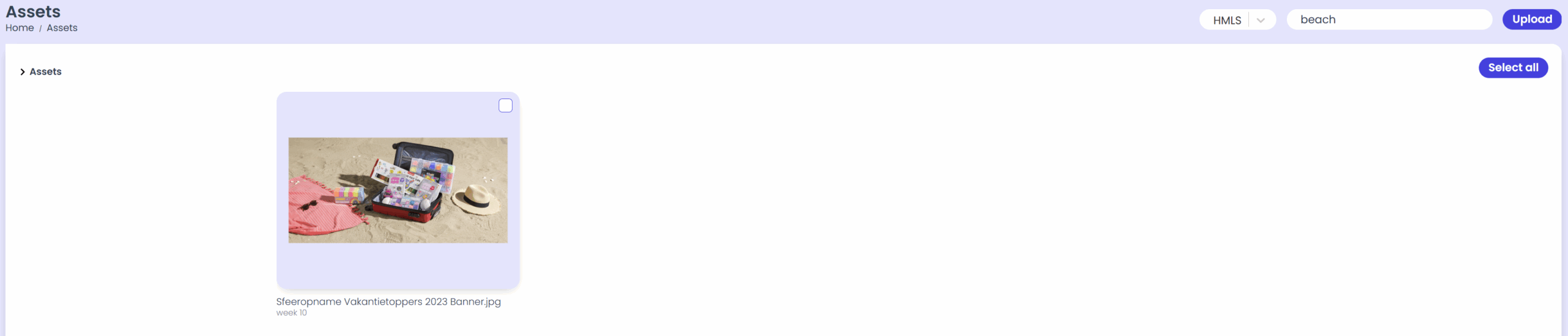
Add tags to assets
In the Assets overview, you can add tags to images to make them easier to organize and search for.
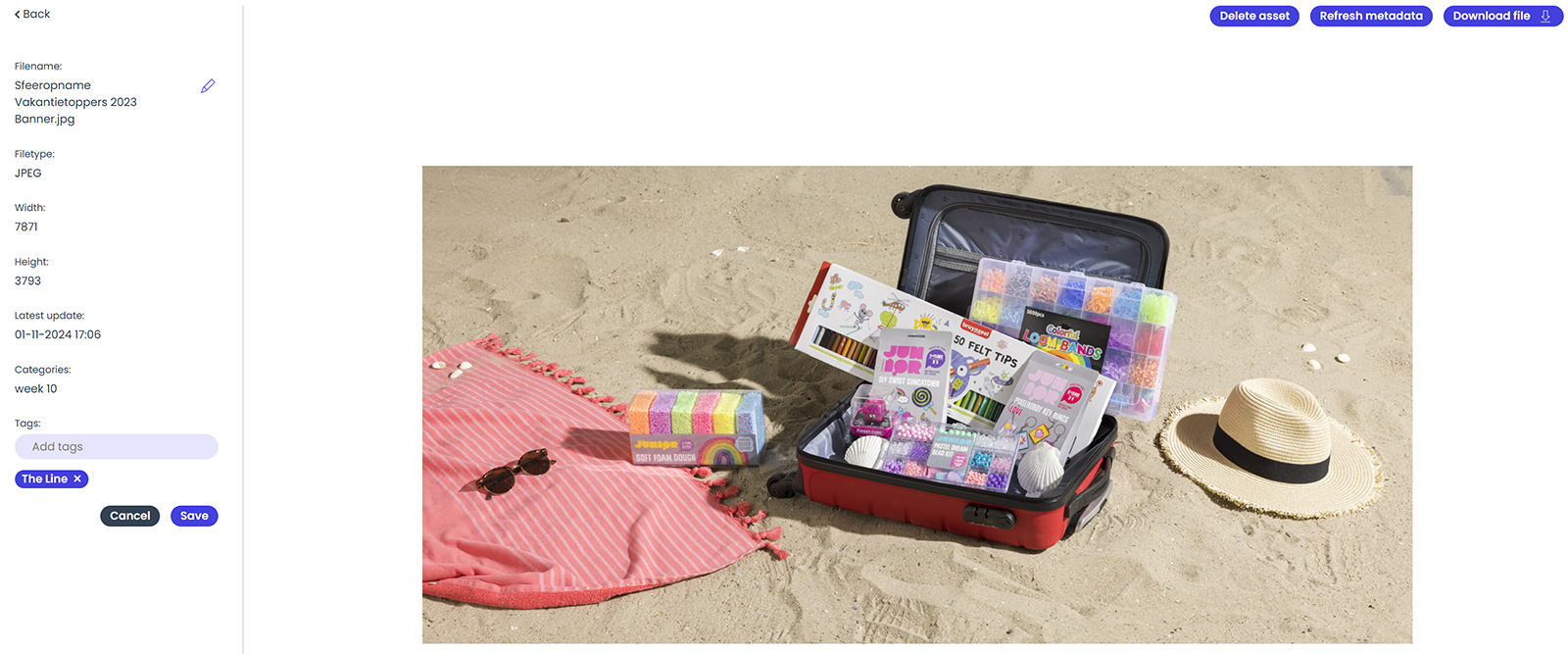
Adding a Tag
-
Click on an image to open its details.
-
Locate the “Tags” field.
-
Click the pencil icon next to the field to edit.
-
A new input field will appear — enter the tag you want to add.
-
Click “Save” to save the new tag.
After clicking Save, one of the following will happen:
-
The tag is successfully saved to the image.
-
An error message appears if your account does not have permission to add tags.
Searching by Tag
Once a tag has been added:
-
Return to the Assets overview.
-
Click the search bar in the top-right corner.
-
Enter the tag to find all images associated with it.