Create collection
Collections allow you to group selected assets for easier access and sharing with specific users or user groups.
Creating a New Collection
-
In the Assets overview, select the asset you want to include in a new collection.
-
To do this, click the checkbox in the top-right corner of the asset.
-
-
Once selected, go to the top of the page and hover over the “Select options” button.
-
From the dropdown, click “Add to collection”.
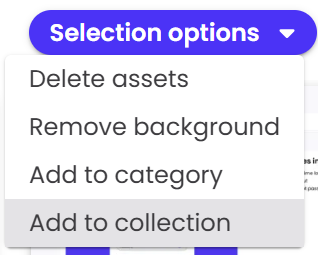
A sidebar will appear with the following options:
-
Name of collection
Enter a name for your new collection - Users groups
Select a specific user group(s) who should be able to view the collection -
Users
Select specific user(s) who should be able to view the collection
Once all fields are filled in, click “New collection” to save.
Adding More Assets to an Existing Collection
You can add additional assets to an existing collection at any time:
-
Select the assets you want to add by checking their checkboxes.
-
Hover over the “Select options” button at the top of the page.
-
Click “Add to collection” from the dropdown.
-
The sidebar will appear again.
-
At the bottom (Existing collection), click on the collection selection field.
-
Choose the existing collection you want to add the assets to.
-
Click “Add to collection”.
All selected assets will now be added to the chosen collection.