Crop assets
If you only need a specific part of an image, you can use the Crop function within the Assets overview.
To crop an image:
-
Select the image you want to crop from the Assets overview.
-
The image will open in full-screen view.
-
In the top-right corner, click the “Download file” button.
-
From the dropdown, click “Crop”.
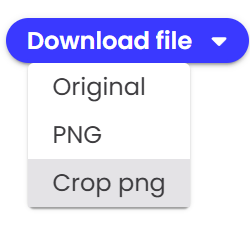
The image will reload slightly larger, ready for selection. When you hover over the image, your cursor will change.
-
Click and drag to select the area you want to crop.
-
The selected area will appear brighter than the rest of the image.
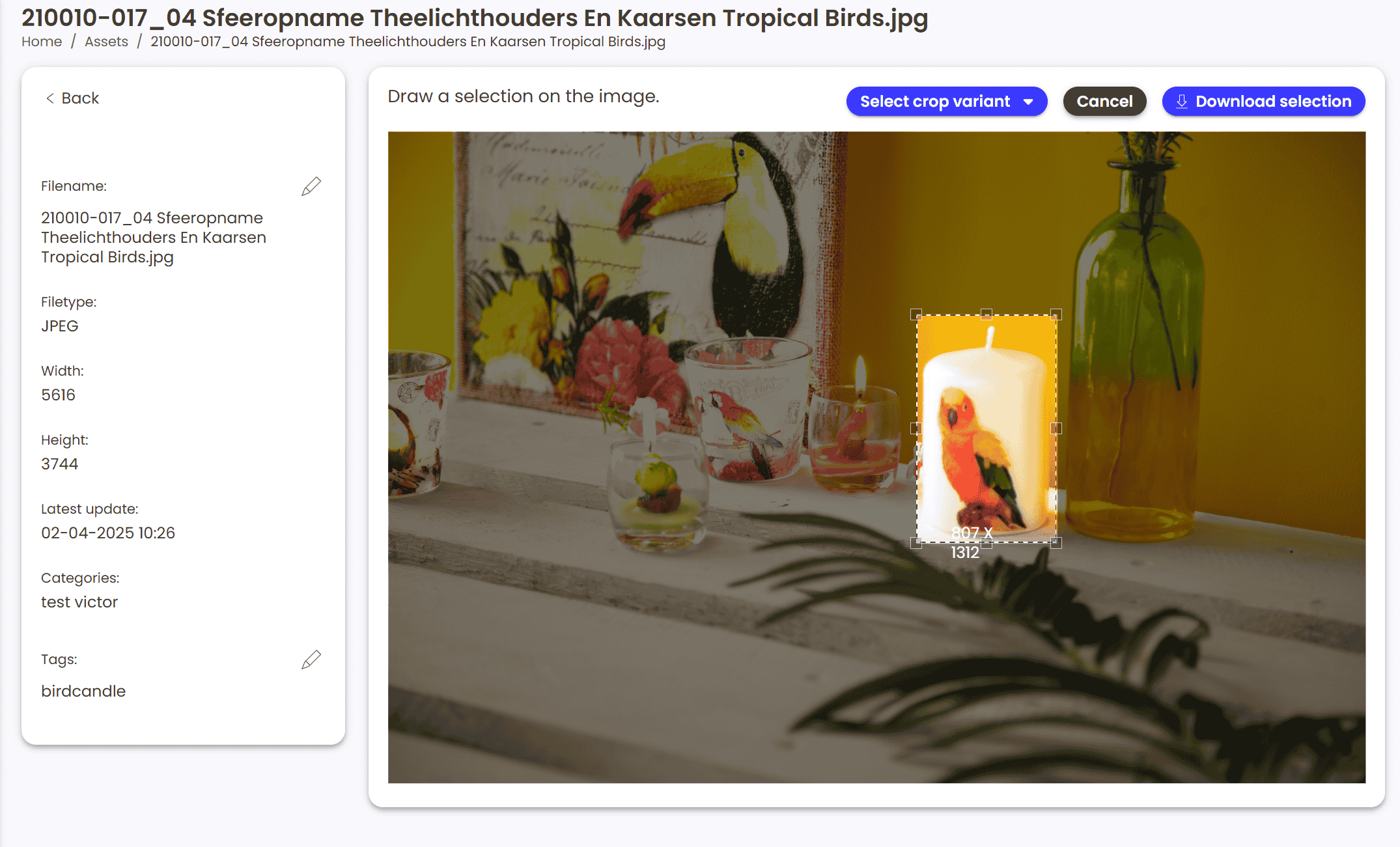
Once satisfied with your selection, click the “Download selection” button in the top-right corner. Your cropped image will be downloaded automatically.