Set up a new authenticator app
If you lose access to your authenticator app, get a new phone, or want to use a different authenticator app, you can set up a new authenticator from your profile.
To set up a new authenticator app:
- Click your name in the bottom-left corner of the screen to open your profile.
- Click “Set up new authenticator”.
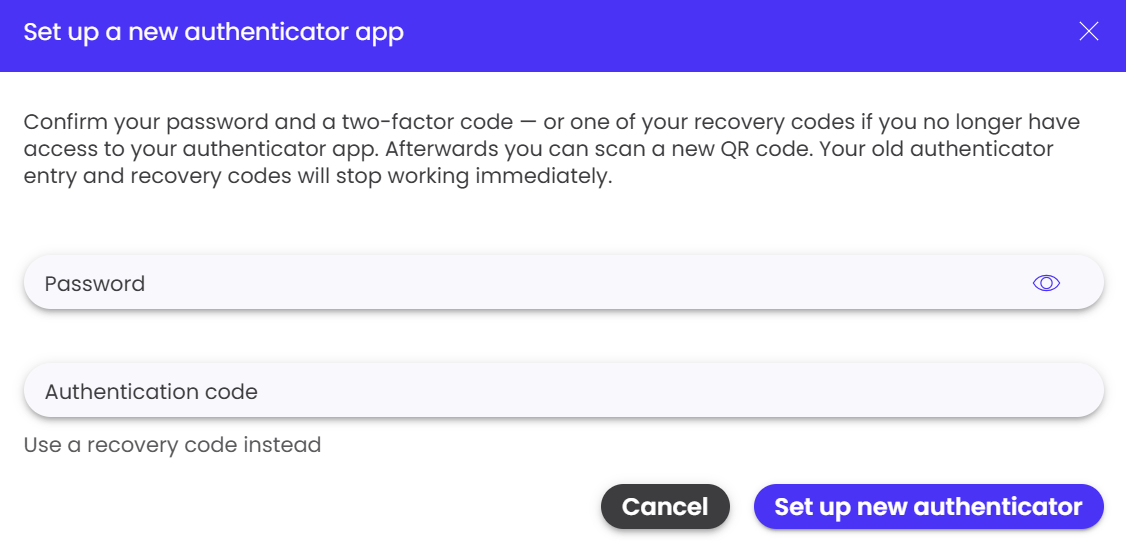
- A pop-up will appear asking you to confirm your identity.
- Enter your password.
- If you no longer have access to your authenticator app, click “Use a recovery code instead” and enter one of your recovery codes.
- Click “Set up new authenticator” to continue.
- A new QR code will appear. Open your preferred authenticator app, for example Google Authenticator or Microsoft Authenticator, and scan the QR code.
- Enter the 6-digit authentication code generated by your new authenticator app and confirm the setup.
- Save the new recovery codes in a secure place.
Please note:
Once you set up a new authenticator, your previous authenticator setup and existing recovery codes will stop working immediately. Make sure to save your new recovery codes securely and remove the old CreationHub entry from your previous authenticator app if it is no longer needed.